
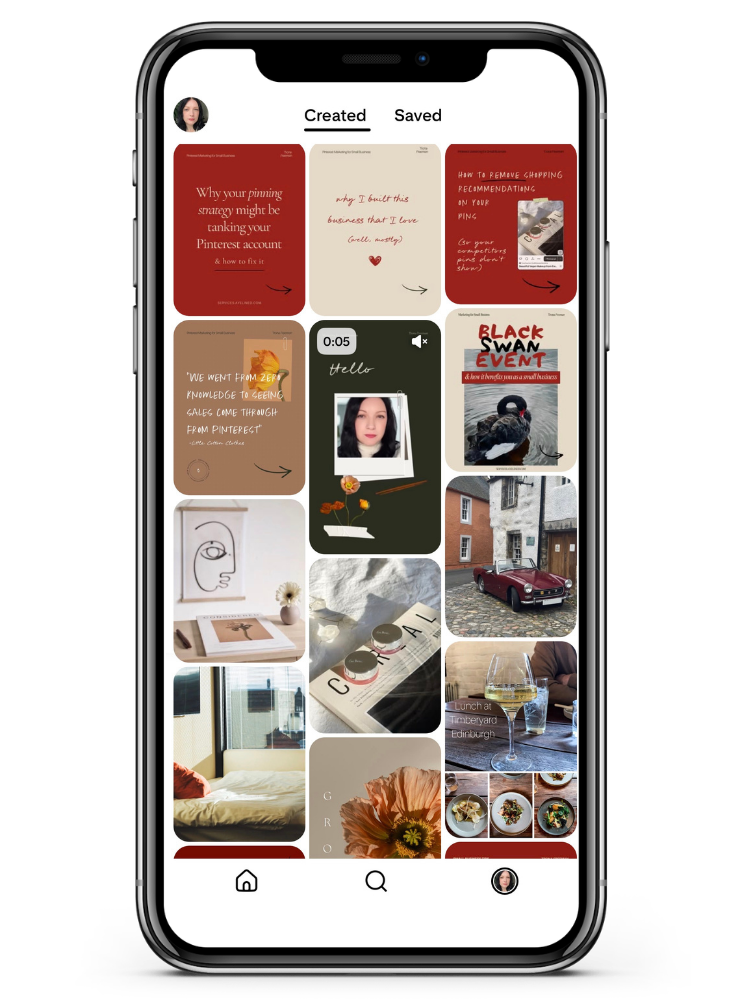
An Introduction to Pinterest: A Complete Guide for Beginners
If you’ve been wondering what Pinterest actually is, whether it’s right for your business, and how to get started, you’re in the right place. This guide covers everything you need to know about Pinterest for business, from setting up your account to understanding how the algorithm works and what all those Pinterest terms actually mean. Let’s dive in!
By Trona Freeman, Pinterest & SEO Specialist.
First, What is Pinterest?
Pinterest is a visual search engine and discovery platform where people find ideas; inspiration, and products, and then go and buy them, make them, or visit them.
That last part is important. People don’t browse Pinterest to see what their friends had for breakfast. They come with intent. They’re planning a kitchen renovation, looking for a slow cooker recipe, researching a holiday, trying to figure out what to wear to a wedding, or looking for ideas that will grow their business. They are actively looking for answers and solutions, which makes Pinterest an incredibly powerful place for businesses to show up.
Every piece of content on Pinterest is called a Pin, and each Pin links back to a website. That means every Pin you create is a potential traffic driver, sending people directly to your blog posts, product pages, or services.Unlike social media platforms where content disappears from feeds within hours, Pins have an incredibly long lifespan.
A Pin you create today can still be driving traffic to your website months, or even years, later. That’s not something Instagram or Facebook can say. More on Pins later.
Who Uses Pinterest?
Pinterest has over 631 million monthly active users globally, and the platform’s own data consistently shows that its users are in a planning and purchasing mindset. In fact, studies have shown that Pinterest users have higher average order values than shoppers coming from other social platforms. So it is very much worth your time being on the platform.
Who’s on Pinterest?
There are a wide range of people using Pinterest. In the UK, Pinterest reaches:
- 39% of people ages 18–24
- 31% of people ages 25–34
- 29% of people ages 35–44
- 30% of people aged 45+
Pinterest reaches 28% of high income shoppers.
And importantly:
80% of weekly Pinners say that they feel inspired by the shopping experience on Pinterest. Find out more about the Pinterest audience here.

The Pinterest Customer Journey Looks Different
Pinners often come to Pinterest with an idea, they’re open to trying new things. 97% of searches on Pinterest are unbranded, so this gives you a chance to get people while they are still looking.
Pinners are typically looking for inspiration, they’ll save Pins that pique their interest, then they’ll come back to it. This cycle might be relatively quick or take longer.
It is important to remember that Pinners are planners. This will help you get the most of the platform and help your audience along the way.
Why Your Business Should Be on Pinterest
Pinterest is a search engine, not a social media platform. That changes everything about how you use it.
Unlike Instagram, where you’re trying to build a community and show up consistently to maintain visibility, Pinterest works more like Google. You create optimised content, and it continues to work for you long after you’ve published it. A well-optimised Pin can drive traffic to your website for years.
Here’s why Pinterest deserves a place in your marketing strategy:
It drives real website traffic. Pinterest is consistently one of the top referrers of website traffic. If getting people to your website is a goal, Pinterest is one of the most effective tools available.
Pins have an extraordinarily long lifespan. The average lifespan of a Pin is measured in months and years. Compare that to an Instagram post that sees engagement for 1-2 days, sometimes longer (if you’re very lucky).
Your content compounds over time. The more Pins you have out there, the more chances people have to find you.
It works brilliantly for product and service-based businesses. Whether you sell physical products or services, Pinterest’s search-driven nature means you can show up right when someone is looking for exactly what you offer.
It’s less crowded than other platforms. Many businesses still aren’t on Pinterest, or aren’t using it strategically. That means less competition for your ideal customers’ attention.
How the Pinterest Algorithm Works
Pinterest’s algorithm decides which Pins to show to which people, and understanding it makes your content far more effective.
The algorithm is primarily driven by relevance and quality, rather than recency (as it is on many social platforms). Here’s what it’s looking for:
Keyword relevance. Pinterest is a search engine, so keywords matter enormously. The algorithm reads the text in your Pin title, description, and the alt text of your image, as well as the content of the page you’re linking to. Using the specific words and phrases your ideal customers are searching for is one of the most important things you can do.
Pin quality. Pinterest assesses the quality of a Pin based on its visual appeal, engagement rates (saves, clicks, comments), and the quality of the destination URL. If people save your Pin and click through to your website, Pinterest takes that as a positive signal.
Domain quality. Pinterest pays attention to the overall quality of your website (your “domain”). Consistent pinning, verified website ownership, and good click-through rates all contribute to a higher domain quality score, which means more of your Pins get distributed.
Board relevance. The boards you save your Pins to send signals to the algorithm about what your content is about. A Pin about sourdough bread saved to a board called “Baking Recipes” makes far more sense to the algorithm than the same Pin saved to a board called “Stuff I Like.”
Fresh content. Pinterest prioritises fresh (new) Pins over repins of existing content. Creating new images or video Pins consistently helps signal to the algorithm that you’re an active, quality creator.
The key takeaway? Think of every Pin you create as a piece of search-optimised content, not a social media post.
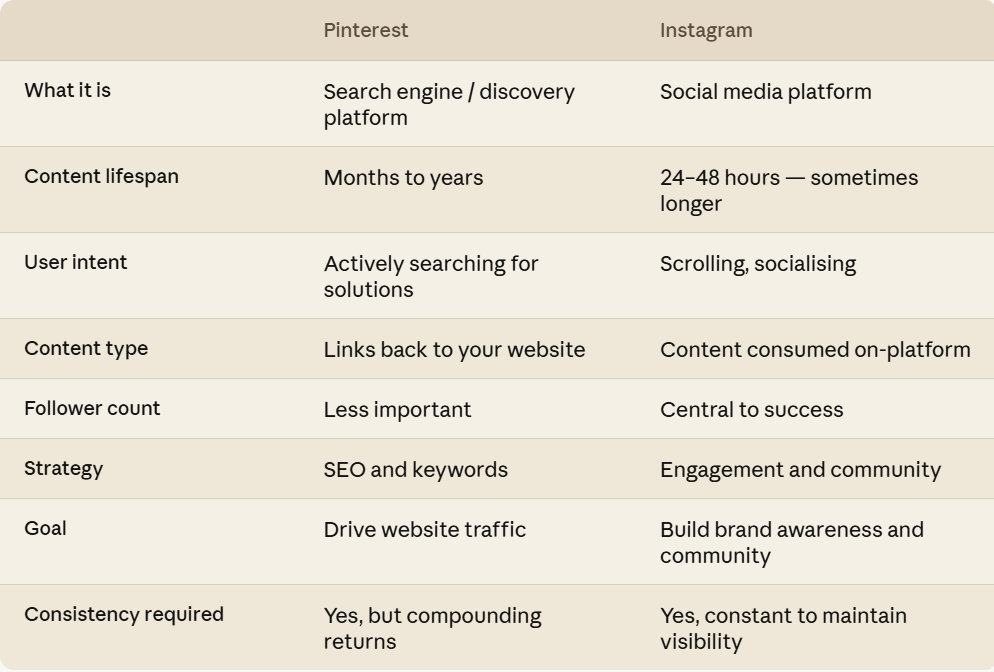
How Pinterest and Instagram Are Different
This is probably the most important thing to understand if you’re coming to Pinterest from an Instagram background.
The biggest mental shift: on Instagram, you’re building relationships and community. On Pinterest, you’re creating a searchable library of content that works for you around the clock.
You don’t need thousands of followers on Pinterest for your content to reach thousands of people. A well-optimised Pin can appear in search results for anyone, regardless of whether they follow you. That’s amazing for a business short on time.
Steps to Help You Get Started on Pinterest
1. Set Up Your Business Account
First things first, you need a Pinterest Business account, not a personal one. A Business account gives you access to Pinterest Analytics, Pinterest Trends, the ability to run ads, none of which are available on personal accounts.
To set up a new Business account, go to pinterest.com/business/create and follow the steps. It’s straightforward to do.
2. Claim Your Account(s)
Claiming your accounts and website is essential. It tells Pinterest that you’re the verified owner of your website and any connected social profiles, which helps build your domain quality score and unlocks additional analytics.
To claim your website visit this Pinterest guide, this will walk you through the steps.
3. Set Up Your Pinterest Profile
Your Pinterest profile is the first thing people see when they visit your account, so it’s worth taking a little time to get it right.
Profile name
Your profile name should include both your business name and a keyword or two that describe what you do.
For example, rather than just “Trona Freeman” you might use “Trona Freeman | Pinterest & SEO for Small Businesses.” This helps you show up in Pinterest search results when people look for services like yours.
Profile bio
You have 500 characters for your bio. Use them wisely. Lead with what you do and who you help, and if possible, weave in a keyword or two naturally. Think about what your ideal customer would search for.
Think of this as your elevator pitch. This tells people very quickly if you’re right for them.
Profile photo
Use a clear, professional-looking headshot or your logo. If you’re a personal brand, a friendly, well-lit photo of your face tends to perform better than a logo, people connect with people. Keep it consistent across all your platforms.
Profile cover
Pinterest allows you to add a cover image at the top of your profile. A cover image (minimum 800 x 450 px) is a great opportunity to visually communicate your brand and what you do at a glance. Keep it clean, on-brand, and easy to understand.
For more info about setting your Pinterest profile up visit here.

What Are Pinterest Boards and How to Set Them Up
Think of boards as folders or categories on your Pinterest profile. Each board holds Pins related to a specific topic, and they help both the algorithm and your visitors understand what your account is about. Boards are incredibly important for a successful Pinterest strategy.
How to create a board
- Go to your profile
- Click the “+” icon and select “Board”
- Give your board a name, make it clear, descriptive, and keyword-rich. “Home Office Ideas” is better than “My Faves.”
- Add a board description (don’t skip this!) using relevant keywords
- Choose whether to make it public or secret (secret boards are great for organising content you’re not ready to share yet)
- Click “Create”
Tips for organising your boards:
- Create boards that reflect what your ideal customer is searching for, not just what you sell. If you sell skincare, you might have boards for “Sensitive Skin Tips,” “Natural Skincare Ingredients,” “Simple Skincare Routines,” and “Skincare for Over 40s”. Not just boards like “Our Products”, “Latest Releases”, etc.
- Aim for at least 5-10 boards to start, each with a clear focus.
- Don’t leave boards empty, aim to have at least 10 Pins in each board before making it public.
- Use board covers for a cohesive, professional look on your profile (if you have time!)
- Arrange your most important boards towards the top of your profile.
And importantly, keep your boards active. If you have boards that haven’t been added to in 3 months or more, add new Pins. This info is straight from Pinterest. Or if the boards are no longer relevant you can secret them.

What Are Pins and How to Make Them
Pinterest describe Pins as ‘visual bookmarks’. A Pin is any piece of content saved to Pinterest. At its most basic, a Pin consists of:
- An image or video
- A title
- A description
- A link (the URL you want to send people to)
When someone clicks on a Pin, they’re taken to the source website, which is why Pinterest is such a powerful traffic driver.


How to Create a Pin
- Click the “+” icon on your profile or in the top menu or at the top of the Pinterest app. (This changes regulalry!)
- Select “Create Pin”
- Upload your image or video
- Add a title– make it clear and use keywords
- Write a description– write naturally but include relevant search terms
- Add the destination URL – the specific page you want to link to
- Select the board you’re saving it to
- Add an alt text description of the image
- Click “Publish” or schedule it for later
Different Types of Pinterest Pins
There are a few different types of Pins on Pinterest:
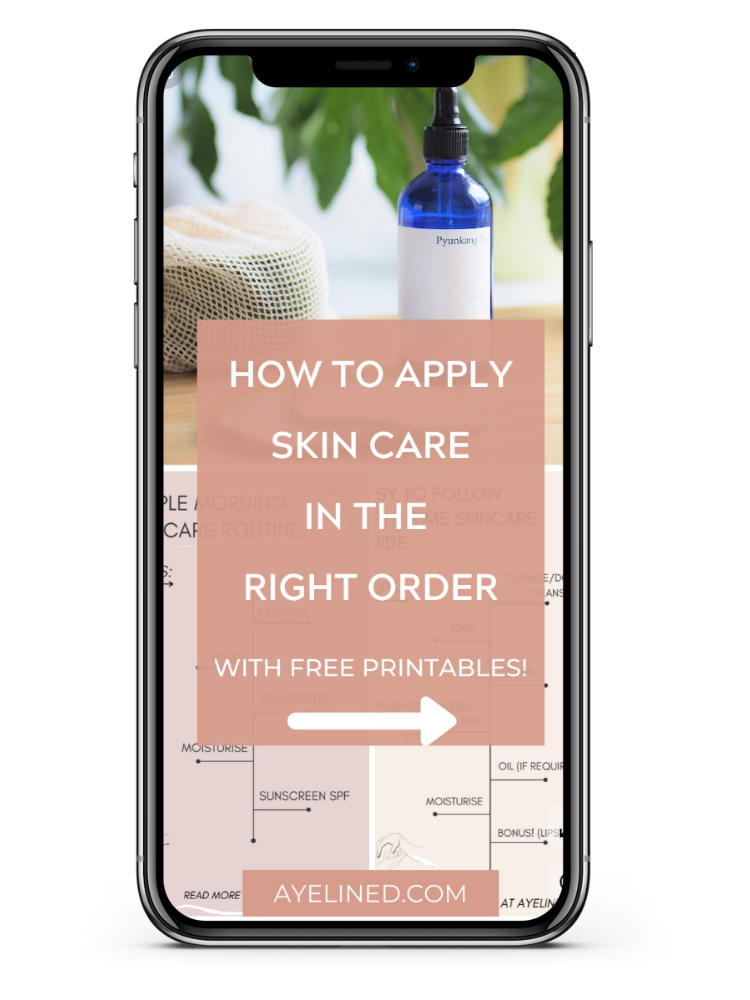
Image Pins are the most common type, and the one you’ll probably use most often. A single image, linked to a webpage. You can upload an image directly from your computer or phone, or save an image you find online (Pinterest will pull through the link to the original source automatically). If you have a business account, you can also run image Pins as ads. This now includes ‘idea pins’- these are Pins that are the same size as Instagram Reels or TikToks.
Video Pins feature a video (yes, I know), or a combination of video and images. You can add text overlays, stickers, and other effects to make them more engaging. The autoplay feature makes them naturally eye-catching, which is worth knowing if you’re thinking about experimenting with video content. This is a good way to reuse content from other platforms.
Rich Pins automatically pull information from your website and display it directly on the Pin, keeping everything up to date without you having to do it manually. So make sure you have your meta titles and descriptions filled in.
There are three types of Rich Pins: Recipe Pins (which include ingredients, cook time, and serving size), Article Pins (which pull through the title, author, and description of a blog post), and Product Pins (which show live pricing and availability from your site).
Product Pins are specifically for products that are available to buy. When someone clicks on a Product Pin, they’re taken straight to the retailer’s website. If you have an e-commerce store, you can set these up either by connecting your product catalogue to Pinterest, or by setting up Product Rich Pins. If you’re not a merchant but want to share products, you can tag products within your Pins instead.
Collage Pins are a newer Pinterest feature that let you cut out objects from existing Pins or your own camera roll and combine them into a single, interactive image. Think of it as a digital mood board; you can layer products, textures, colours, and ideas together to see how they work as a whole.
For businesses, collages are a fun way to show product combinations, style multiple items together, or create visually rich inspiration boards. One particularly useful detail: collages made with Product Pins are shoppable, meaning people can tap individual items within the collage and go straight to the product page. That’s a handy feature if you sell physical products.
It’s worth experimenting with collages if your content is visual (interiors, fashion, food, beauty, and lifestyle brands especially) as they tend to perform well for discovery and saves.
Ad Pins (Promoted Pins) are paid Pins that look almost identical to organic Pins, the only difference is a small “Promoted” label. Because they blend so naturally into the feed and search results, they tend to feel far less intrusive than ads on other platforms.
You can promote image Pins, video Pins, and Product Pins, and target them by keywords, interests, demographics, and location.
Pinterest ads can be a great way to get your content in front of a wider audience faster, though it’s worth getting your organic strategy and profile set up properly before you invest in paid promotion.
For more about the different types of Pins and how to set them up see here.
Design tips for Pins that perform:
- Use vertical images (2:3 ratio) – they take up more space in the feed
- Keep text overlays clear, legible, and easy to read on a mobile screen
- Use your brand colours and fonts consistently so your Pins are recognisable
- Include a subtle logo or URL on your Pins so people know who created them
- Create multiple Pin designs for the same piece of content – different images can appeal to different search queries (but don’t Pin the same URL over and over again, this can harm your distribution and account health).
I wrote more about creating engaging pins that drive action here.
Pinterest Analytics- What to Track
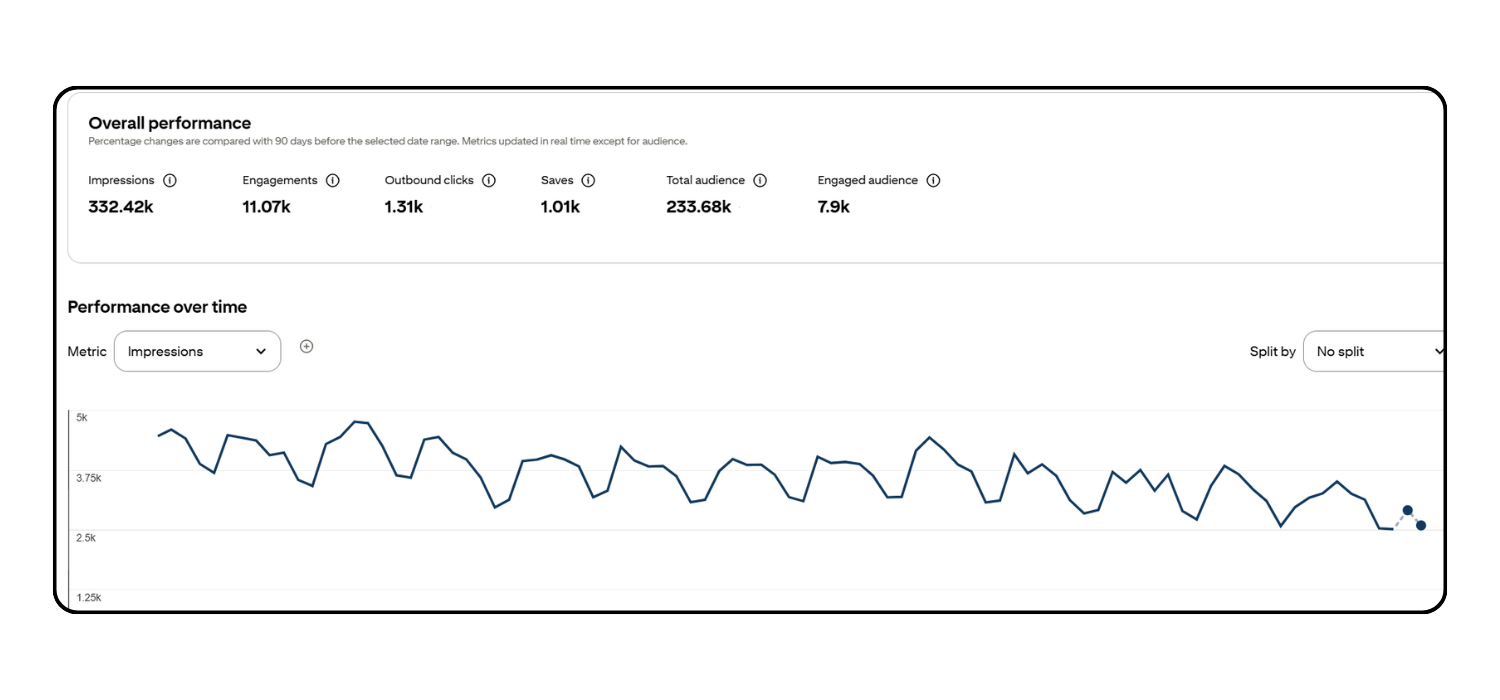
Once you have a business account and have claimed your website, you’ll have access to Pinterest Analytics. This is your dashboard for understanding how your content is performing.
To access Analytics, click “Analytics” in the top left menu of your Pinterest dashboard. Looking at Pinterest analytics on your desktop is the best way to look at analytics. The Pinterest app is pretty limited here.
Key Pinterest metrics to pay attention to:
Impressions:
How many times your Pins were shown to people. A good starting point for understanding your reach, but impressions alone don’t tell the whole story. Also take impressions with a pinch of salt.
Saves:
How many times people saved your Pins to their own boards. Saves are a strong signal that your content resonates and that people want to come back to it. Super important for a successful Pinterest strategy.
Outbound clicks:
How many times people clicked from a Pin through to your website. This is often the most important metric for businesses using Pinterest to drive traffic.
Pin clicks:
How many times people clicked on a Pin to open it in closeup (but didn’t necessarily click through to the website). Useful for understanding interest.
Engaged audience vs total audience:
Your total audience is how many people saw your Pins; your engaged audience is how many people interacted with them.
What to look for:
Check your analytics regularly to see which Pins are driving the most outbound clicks and saves. Look for patterns, which topics, formats, and designs are resonating? Do more of what’s working. It’s worth noting that it can take time to build traction, so take the long view when looking at analytics on Pinterest.
Pinterest Analytics also shows you audience insights: demographics, interests, and even what other content your audience engages with. This is gold for understanding who’s finding your content. Audience insights can also give you other ideas for content too. Worth digging into.
Pinterest Trends
Pinterest Trends is a free tool (available within your Pinterest dashboard) that shows you what people are searching for on Pinterest right now and what they were searching for this time last year, plus future trends. It’s an amazing resource.
To access it, go to Analytics > Trends.
You can also access Trends by visiting this link: trends.pinterest.com
This is genuinely one of Pinterest’s most underused features, and it’s incredibly useful for content planning.
How to use Pinterest Trends:
- Type in a topic related to your business and see how search volume has changed over time
- Use it to plan seasonal content in advance. Pinterest users plan weeks or months ahead, so you need to be posting about seasonal topics before they peak, not at the same time
- Compare multiple search terms to see which is more popular
- Use trending searches to inspire new Pin and blog post ideas that you know people are actively searching for
Trends now also feature shopping trends, which is an absolute goldmine for ecommerce sites.

Add a Pinterest Save button to your website
A Pinterest Save button lives on your website and appears when visitors hover over your images. That little red “Save” button gives them a one-click way to Pin your content directly to their Pinterest boards, without having to leave your site or open Pinterest. It’s one of the easiest ways to turn your existing website visitors into Pinterest traffic drivers for you.
How you add it depends on your website platform:
Squarespace
Has this built in, you just need to enable it. Go to Home menu → Marketing → Pinterest Save buttons and switch it on. See how to add Pinterest save button on Squarespace here.
WordPress
Users have a couple of options. The recommended method is to use Pinterest’s official Save button code via a plugin like WPCode (Insert Headers and Footers), which lets you add the necessary script without touching your theme files. If you’d rather have a dedicated plugin, Tasty Pins is a popular paid option that gives you full control over the Save button appearance and lets you customise the Pinterest description that gets pulled through when someone saves an image. There are also free alternatives in the WordPress plugin directory if you want to keep things simple.
Other platforms
Most website builders have either a built-in Pinterest integration or a widget option. It’s worth checking your platform’s help docs, as the steps vary.
Anything that makes it easy for people to share your content, products and services is a good thing. Pinterest values other people’s content higher than when you share it, so this is very much worth doing. Remember to add a call to action, something like save for later works well.
Pinterest Glossary- Pinterest Terms Explained
Here’s a quick reference for the terms you’ll encounter most often.
Homefeed
The Homefeed is the main feed a user sees when they log into Pinterest. It’s a curated stream of Pins based on their interests, past searches, boards they follow, and content from accounts they follow. Pinterest’s algorithm determines what appears here. As a business, your Pins can show up in users’ homefeeds even if they don’t follow you, as long as your content is relevant to their interests.
Search
Pinterest Search functions like Google, users type in keywords or phrases and are shown relevant Pins. This is where SEO-optimised Pins really earn their keep. Unlike the Homefeed (which is personalised), Search is open to anyone using the platform, which means your Pins can reach people who’ve never heard of you before. Search is one of the primary ways new audiences discover your content on Pinterest.
Pins
Pins make the Pinterest world go round. The basic unit of content on Pinterest. A Pin is an image or video saved to the platform, linked to a website or other landing page. When someone saves a Pin, it’s added to one of their boards and may be shown to their followers or appear in search results, extending its reach. See the “What Are Pins” section above for full details.
Boards
Boards are collections of Pins organised around a theme or topic. Think of them as folders. Users save Pins to their boards for future reference. Boards are one of the key ways Pinterest understands a Pin. Pinterest looks at the board title, description and other Pins saved to the board, to help them understand what a Pin is, and therefore who to share it to.
Boards can be public (visible to everyone), secret (visible only to you, or collaborators you invite), or collaborative (where multiple users can save Pins).
Impressions
Impressions are the number of times your Pins were displayed on screen, whether in someone’s Homefeed, search results, or on your profile. A high impression count means your content is being shown widely, but impressions alone don’t mean much unless people are also clicking or saving. Use impressions as a reach metric, not a success metric.
Saves
A Save (previously called a Repin) is when a Pinterest user saves one of your Pins to their own board. Saves are one of the most meaningful engagement metrics on Pinterest, because they signal that someone found your content valuable enough to want to return to it, and they extend the reach of your Pin to that user’s own followers. A high save rate is a strong signal to the Pinterest algorithm that your content is quality.
Outbound Clicks
An outbound click is recorded when someone clicks from a Pin through to the linked website. For most businesses, outbound clicks are the most important Pinterest metric; they represent actual traffic to your website. If your impressions are high but your outbound clicks are low, your Pins are being seen but not compelling enough to drive people to your site. This might mean your Pin design, title, or description needs work.
Pinterest Trends
Pinterest Trends is a built-in tool that shows the popularity of search terms on Pinterest over time. It’s invaluable for content planning, particularly for seasonal or topical content. See the Pinterest Trends section above for more detail on how to use it effectively.
Pinterest rewards consistency and patience more than any other platform (well perhaps other search based platforms like Google and YouTube) but it also gives back in a way most platforms don’t (I’m looking at your Instagram).
Once your account is set up and optimised, it works for you in the background, sending traffic to your website while you get on with running your business. You do not need to pin lots to see success on Pinterest. But of course if you want to pin more that’s okay too.

Coming Soon:
Introduction to Pinterest Course
Have you put off Pinterest because you find the thought of it overwhelming? This Introductory course to Pinterest is perfect for you!
Ideal for small businesses completely new to Pinterest. This bitesize, actionable course will take you from a complete beginner to having a Pinterest profile that’s primed to increase your online visibility and get traffic to your site.